


How to Reduce Audio Latency While Recording
If you hear your voice or instrument with a delay in your headphones or speakers, you are experiencing audio latency.
Check the Focusrite configuration first, then your audio driver and DAW buffer settings.
The settings described here apply to the Focusrite Clarett+ 4Pre installed in our recording studios, which you can book by the hour.
In short
- Reset the Focusrite to factory settings.
- Use the correct Focusrite ASIO driver on Windows.
- Reduce the buffer size while recording.
- Temporarily disable effects and heavy plugins.
1. Reset the Focusrite
Open Focusrite Control and restore the audio interface to factory settings.
This avoids a setting left by a previous user affecting your current routing.
2. Use the correct audio driver
On Windows, use the Focusrite USB ASIO driver in your DAW when available.
Select the Focusrite for both input and output.
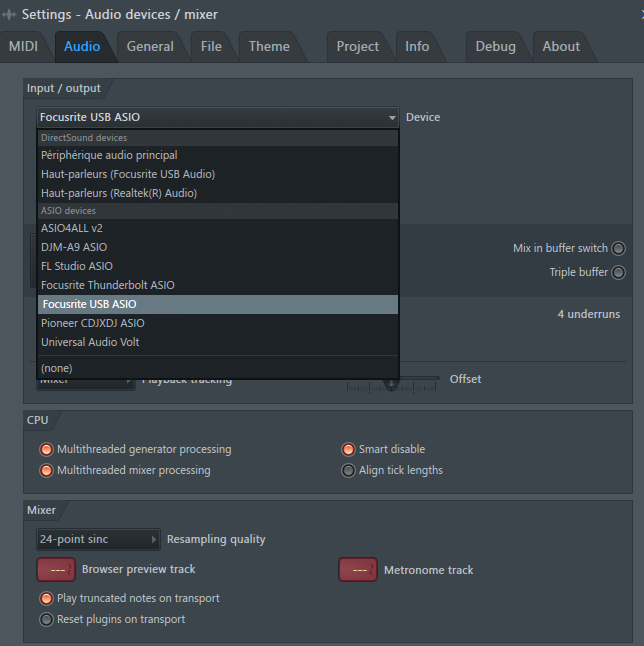
3. Check the buffer size
A larger buffer is more stable but creates more latency. A smaller buffer reduces delay but requires more processing power.
For recording, a starting point between 64 and 256 samples usually works well.
If you hear clicks, crackles or interruptions, increase the buffer step by step.
4. Temporarily disable effects
Some effects and plugins, such as reverb, pitch processing, auto-tune, limiters or heavy master chains, can add extra delay.
Test the recording first without effects on the vocal track or master.
If the latency disappears, enable your plugins one by one to identify which one is causing the delay.
