Solve Audio Problems in the Recording Studio
No sound from the speakers, abnormally high volume or another audio problem after checking your setup? Find the main solutions below.
The checks described here apply to the Focusrite Clarett+ 4Pre installed in our recording studios, which you can book by the hour.
What problem are you having?
No sound from the speakers
Check the following points in this order.
1. Check that the speakers are on
Check the power switch on the back of the speakers.
A green light should be visible at the front when they are powered on.
2. Check the volume levels
Check that the volume levels are set correctly and that the output level is high enough.
3. Check the Focusrite outputs
The two jack cables going to the speakers must be connected to LINE OUTPUT 1 and 2 on the back of the Focusrite.
4. Check your computer's audio output
In the audio settings of your Mac or PC, select Focusrite USB Audio as the output device.
Also check that Focusrite USB Audio is selected as the audio device in your DAW.
The speaker volume is extremely high and the volume control has no effect
This usually happens when the speaker jack cables are connected to the wrong Focusrite outputs.
Check the back of the audio interface.
The speaker jack cables must always be connected to LINE OUTPUT 1 and 2, not outputs 3 and 4.
The audio problem continues
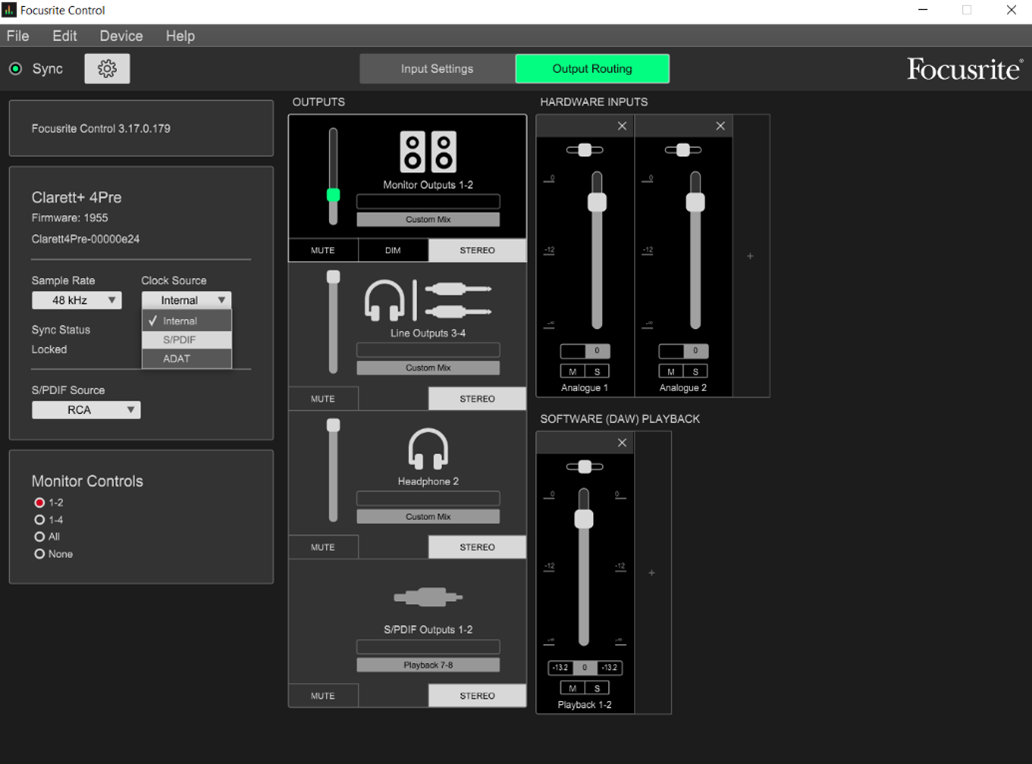
If the problem remains after the previous checks, you can try resynchronising the clock source in Focusrite Control as a last resort.
- Find the clock source setting in Focusrite Control.
- Switch from Internal to S/PDIF.
- Wait about 5 seconds.
- Switch the clock source back to Internal.