


How to Set Up the Vocal Microphone
To record vocals, check the microphone settings, its connection to the Focusrite and the input selected in your DAW.
This tutorial covers the vocal microphone and the Focusrite Clarett+ 4Pre installed in our recording studios, which you can book by the hour.
What do you want to do?
Set up the microphone for vocal recording
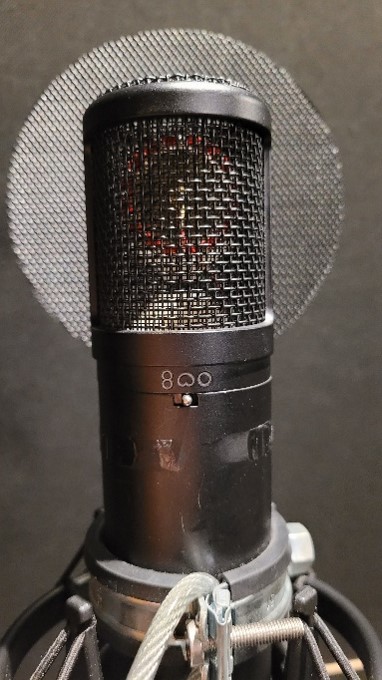
1. Check the microphone settings
Put the three microphone switches in the middle position.
The recommended settings are:
- 0 dB;
- cardioid polar pattern;
- no EQ.
2. Connect the microphone to the Focusrite
Connect the microphone directly to channel 1 of the Focusrite.
Then enable 48V phantom power.
3. Select the correct input in your DAW
Create or select an audio track in your DAW and use channel 1 of the Focusrite as the input.
Do not use input 1+2 for a single voice: that is a stereo input.
Record vocals on a mono track.
4. Set the input level
Speak or sing into the microphone and gradually raise the gain for channel 1 on the Focusrite.
If the signal is too low, you can gradually increase the gain to around 3/4 if needed.
When speaking into the microphone, aim for a green ring around the gain control.
If it turns red, lower the gain.
The microphone does not work or the signal is too low
If you have no signal or the signal is unusually weak, check these points first.
1. Reset the Focusrite
Restore the audio interface to its factory settings in Focusrite Control.
If you are installing Focusrite Control for the first time, restart your computer after installation.

2. Check the microphone connection
- The microphone should be connected directly to channel 1 of the Focusrite.
- 48V should be enabled.
- The three microphone switches should be in the middle position.
3. Check your DAW
- Use channel 1 as the input for the microphone track.
- Avoid the stereo input 1+2.
- Prepare an audio track for recording.
4. Check the gain
If the signal is too low, raise the channel gain gradually until the ring turns green when you speak into the microphone.
If the ring turns red, reduce the gain.
5. If the problem continues
Create a new microphone track without effects or plugins to check whether the track configuration is causing the problem.
If you still have no signal, try another XLR cable.
